.png?width=240&height=55&name=Untitled%20design%20(86).png)
Customer Note Permissions:
1. From the Admin Portal, select Users, then click the pencil icon to edit a specific role.
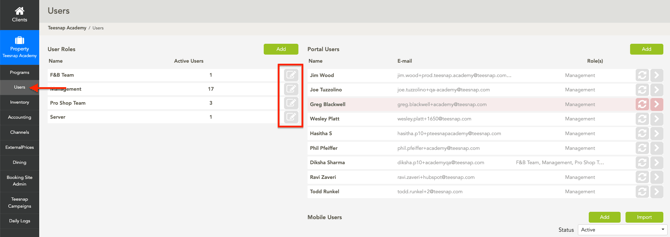
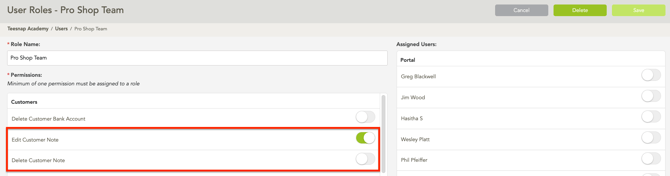
2. There are two customer note permissions. Please enable these permissions for any roles that need access.
- Edit Customer Note - when enabled, allows the user to edit any customer note.
- Delete Customer Note - when enabled, allows the user to delete any customer note.
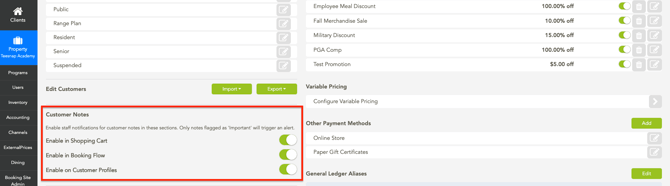
Staff Notification Customer Notes:
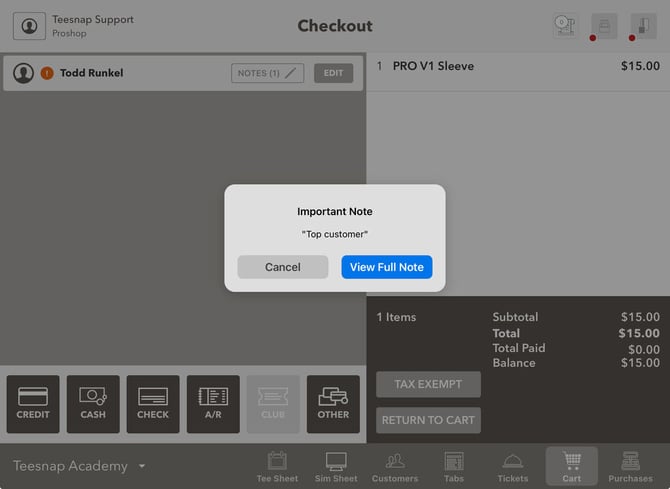
1. In the Admin Portal on the main Property page, you will find a section called Customer Notes. In this section, you can choose which areas of the app will display an important note when a customer is selected. The three available areas are the Shopping Cart (also when creating a tab), Booking Flow (Tee Time Reservation), and Customer Profiles.
Creating a Customer Note:
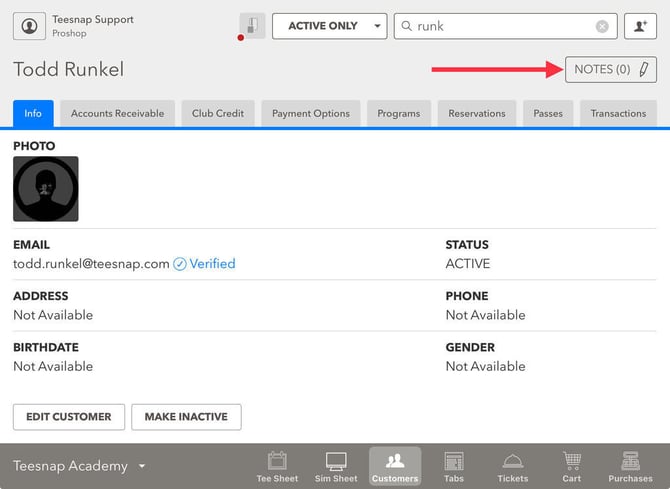
1. Select the Customer section and use the customer search at the top.
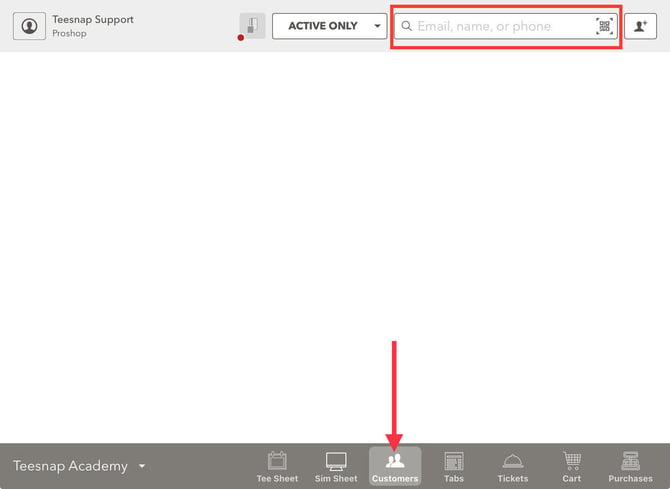
2. With the customer profile open, select Notes.
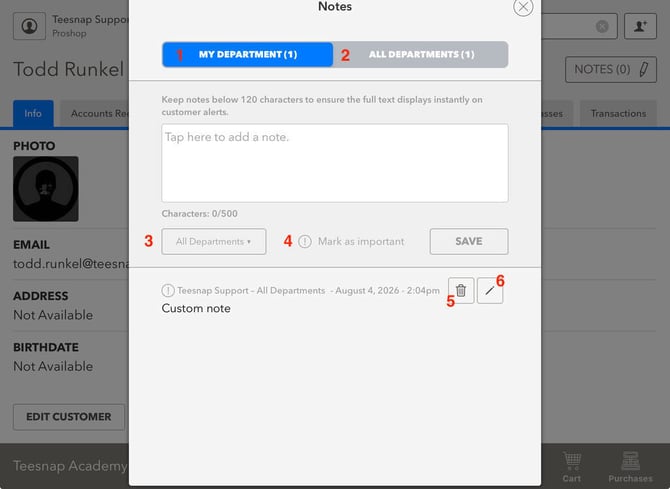
3. Enter the customer note in the text box provided and click Save when complete. Below is a description of each item in the notes screen.
- My Department - The department you are currently logged into. When selected, the Notes page will only display notes tagged for that specific department.
- All Departments - When selected, the notes page will display all notes tagged to the customer.
- All Departments Dropdown - By default, the note will be visible to all departments. If you want it to be visible only to a specific department, select that department from the dropdown.
- Mark as Important - When selected, this option marks the note as important and notifies staff if notifications are enabled.
- Trash Can - Select this icon to delete a note. This icon will only be visible to the logged-in user if their user role has the permission enabled.
- Pencil - Select this icon to edit a note. This icon will only be visible to the logged-in user if their user role has the permission enabled.
Tee Time Reservation Note:
Shopping Cart Note:
If you have any questions, please do not hesitate to reach out to Teesnap Support by emailing us at support@teesnap.com or calling 844-458-1032