.png?width=240&height=55&name=Untitled%20design%20(86).png)
Auto-Assign Member Numbers when a Program is Purchased:
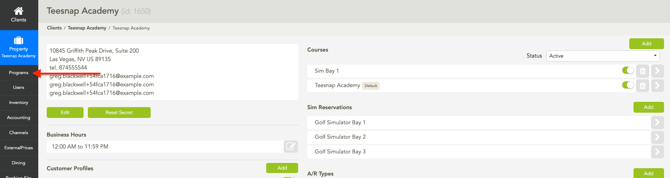
1. From the Admin Portal, select Programs.
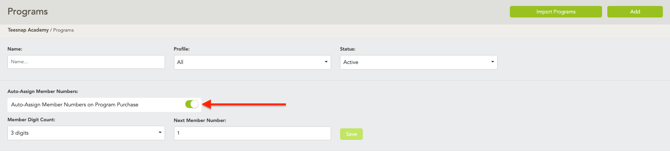
2. If you want a Member Number to be assigned automatically when a Program is purchased, turn this setting on.
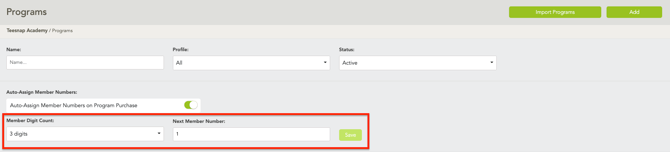
3. Select the number of digits for the member number. If needed, enter the starting number or the next number from your current tracking system.
Entering a Custom Member Number from the iPad:
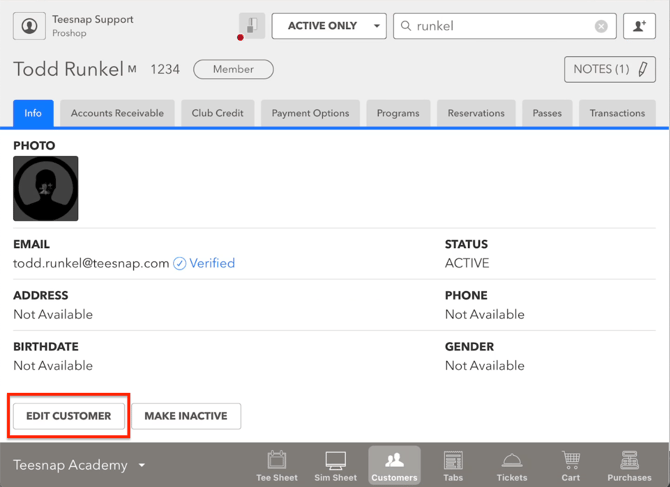
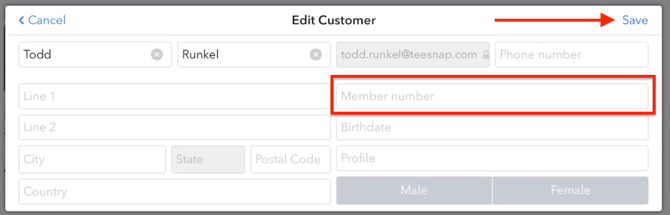
1. From the Customer section, search for the customer by name, then select Edit Customer.
3. Enter your custom Member Number in the field provided and then click Save.
The Member Number field can include numbers, uppercase and lowercase letters, and the following special characters: hyphens, asterisks, parentheses, and single or double quotation marks.
Where can you use Member Numbers to search for a customer? You can use a Member Number anywhere you can search for a customer record on the iPad. For example, you can search by Member Number when reserving a tee time, creating a Tab, or completing a Shopping Cart transaction.
If you have any questions, please do not hesitate to reach out to Teesnap Support by emailing us at support@teesnap.com or calling 844-458-1032.