.png?width=240&height=55&name=Untitled%20design%20(86).png)
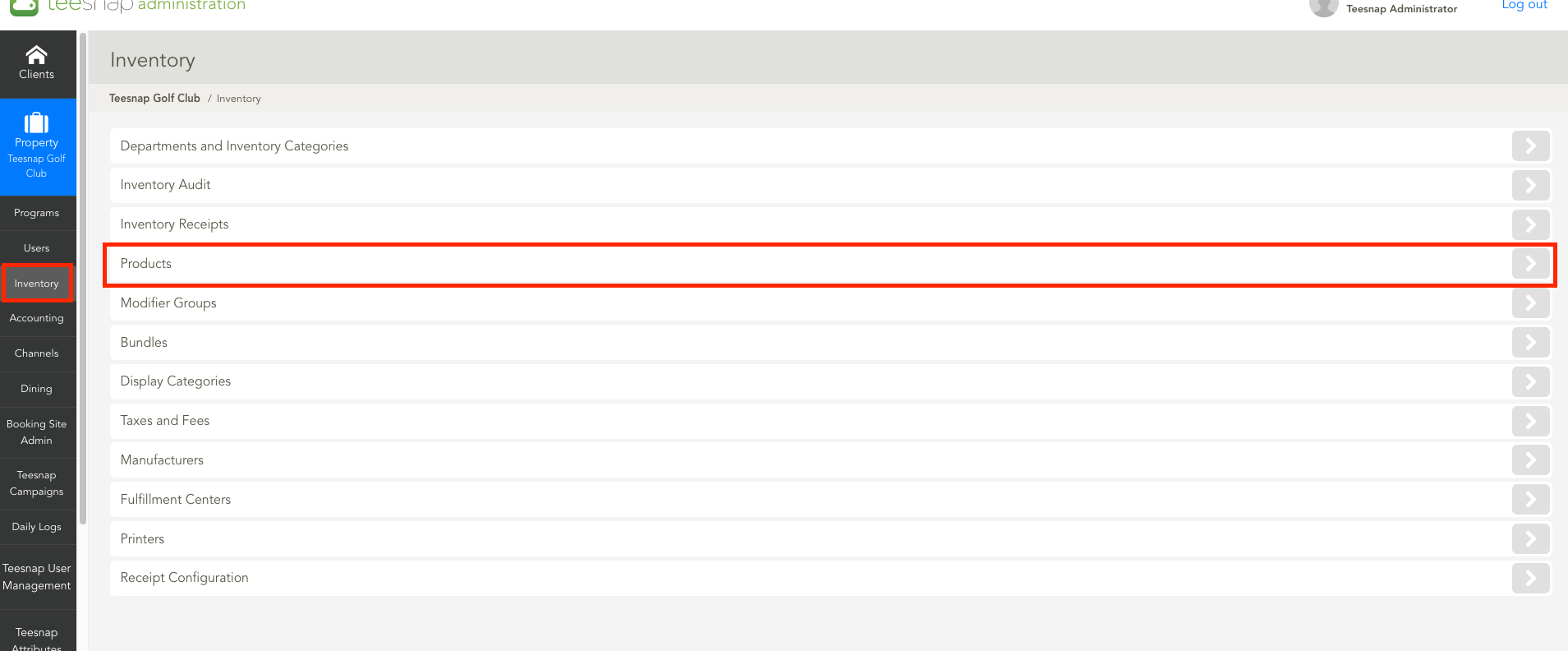
1. Go to the Admin Portal and select Inventory and then Products
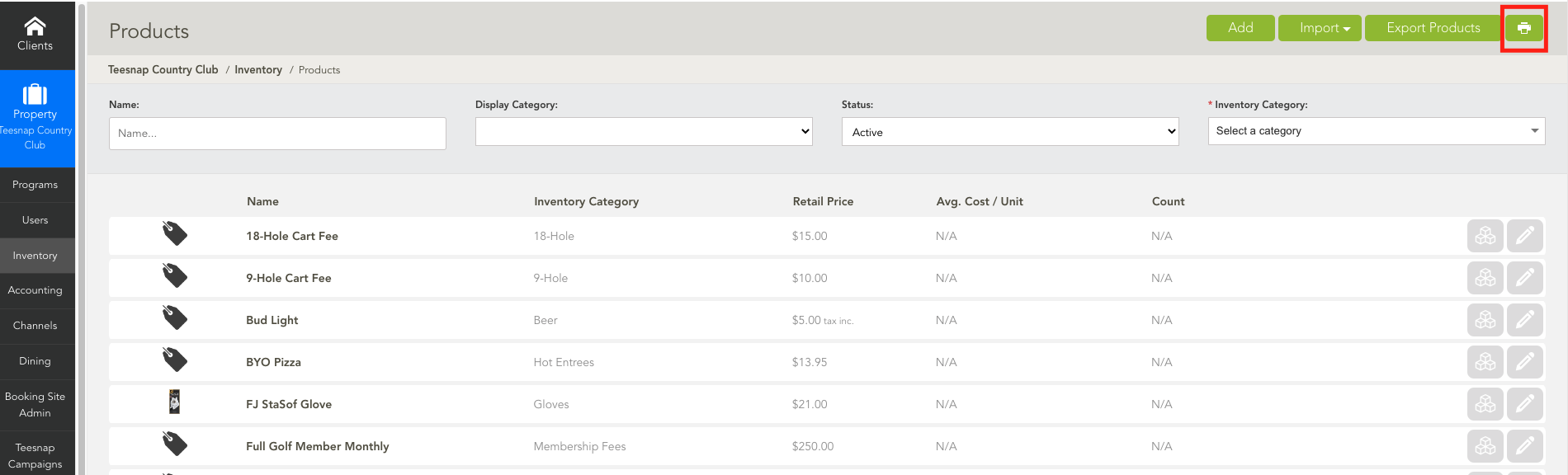
2. From the Product screen select the Green Printer Icon at the top right of the page.
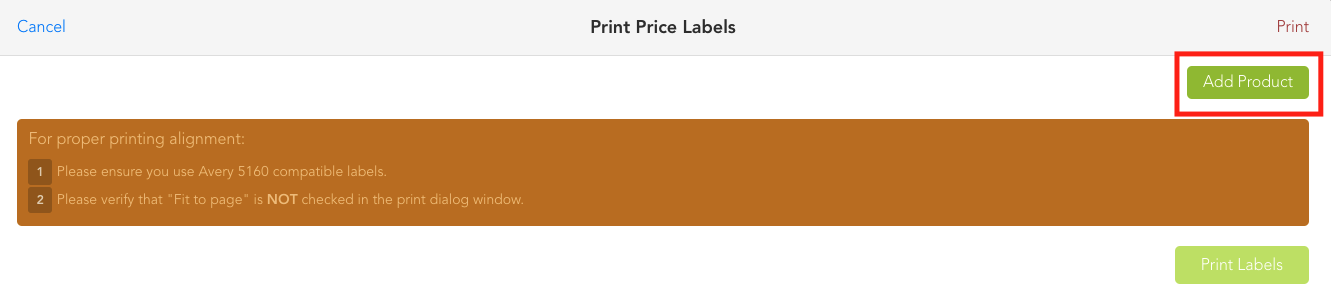
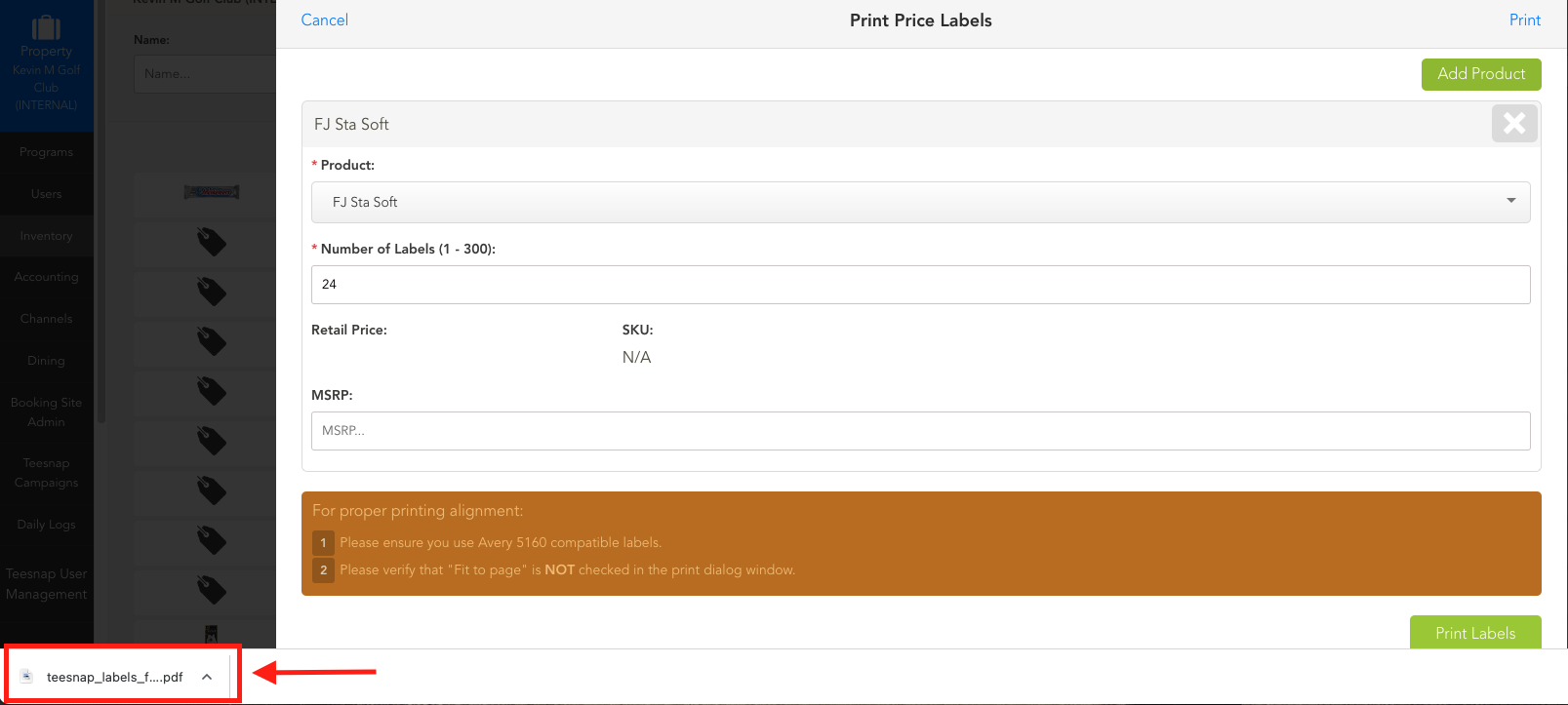
3. Now select Add Product. See the notice about proper printer alignment and to ensure the use of Avery 5160 compatible labels.
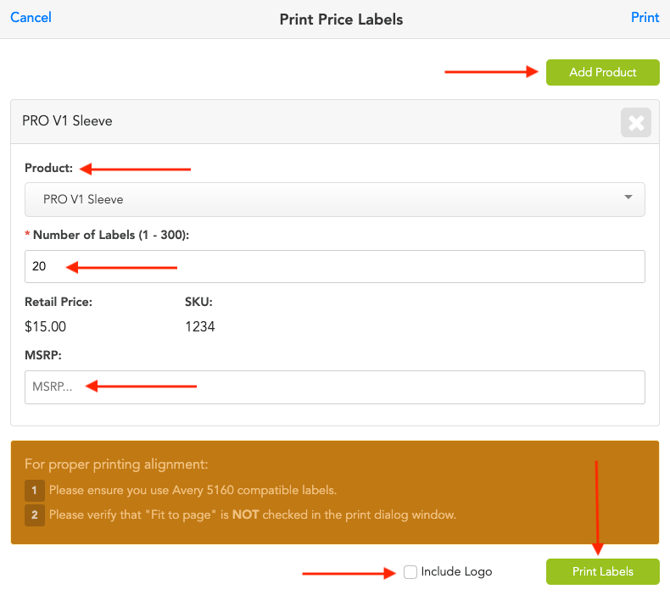
4. From the Product drop-down, search for the product you want price labels for. Then enter the Number of Labels you want. If you also want to show an MSRP price, enter that in as well. If you want to include your logo on the label, select Include Logo at the bottom.
To add another product to print labels, select Add Product. Once complete, select Print Labels.
5. Select the download PDF label file. This might show at the bottom, like below, or at the top of your web browser.
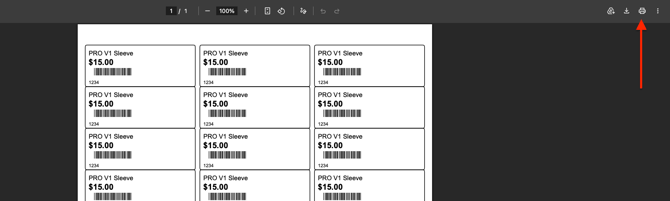
6. With the label file open, select the printer icon at the top right to print your labels.
If you have any questions, please do not hesitate to reach out to Teesnap Support by emailing us at support@teesnap.com or calling 844-458-1032