
Admin Portal: Require MFA for All Users
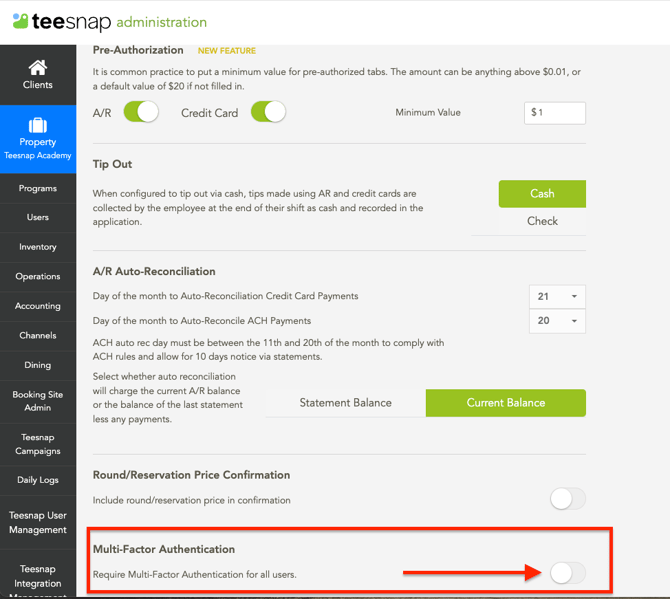
1. From the Admin Portal Property page, enable Multi-Factor Authentication. This will require all Admin Users to use MFA.
Admin Portal: Require MFA for Specific Users
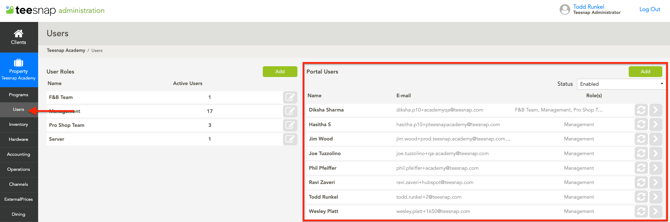
1. Open the User section. Under Portal Users, select the arrow next to the user you want to require MFA for.
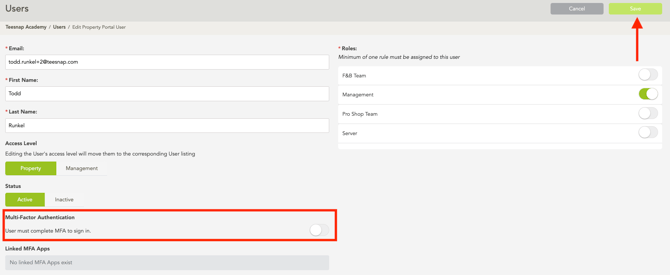
2. Enable Multi-Factor Authentication, then select Save.
If MFA is required for all users, this toggle is automatically enabled and cannot be turned off for individual users.
Admin Portal Login with MFA Enabled:
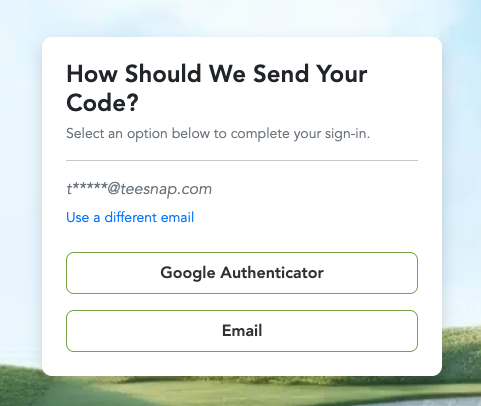
1. After you enter your username and password, it will ask you, "How Should We Send Your Code?". Select your preferred method: Google Authenticator or Email.
3. Email Option: If you select the email option, you will receive an email with your 6-digit code.
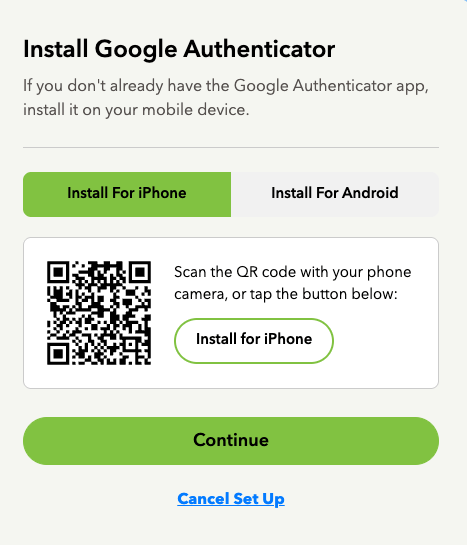
Google Authenticator: If you haven’t already, download the Google Authenticator app on your iPhone or Android device. Open the app, tap the plus sign (+), and select Scan a QR code. Scan the QR code displayed in the Admin Portal. Once setup is complete, the app will display your 6-digit verification code.
Booking Site Admin: Require MFA for All Users
1. From the Booking Site Admin, select Properties.

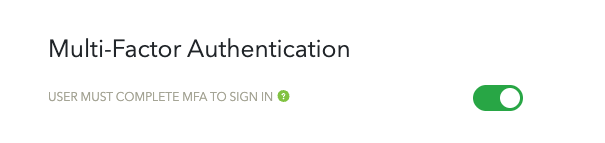
2. Scroll down to Multi-Factor Authentication and turn on the toggle. When enabled, all users must use MFA to log in to Booking Site Admin.
Booking Site Admin: Require MFA for Specific Users
1. From the Booking Site Admin, select Properties.
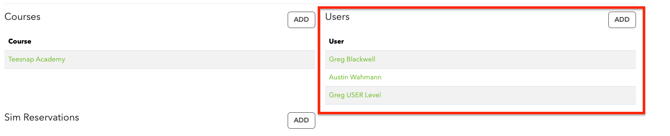
2. In the Users section, select the user for whom you want to require MFA.
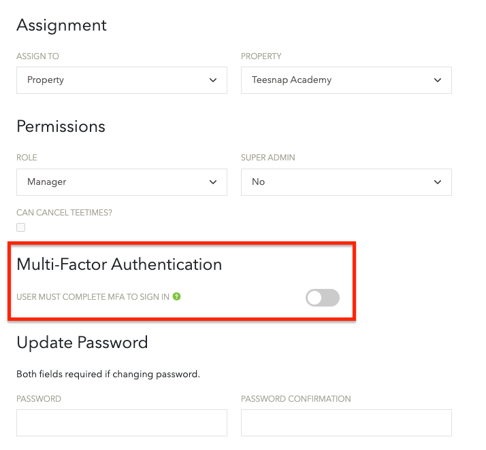
 3. Enable Multi-Factor Authentication for the selected user.
Booking Site Admin: Set Up Google Authenticator
1. After logging in to Booking Site Admin, select My Account in the upper-right corner.

2. Select Add under Multi-Factor Authentication.
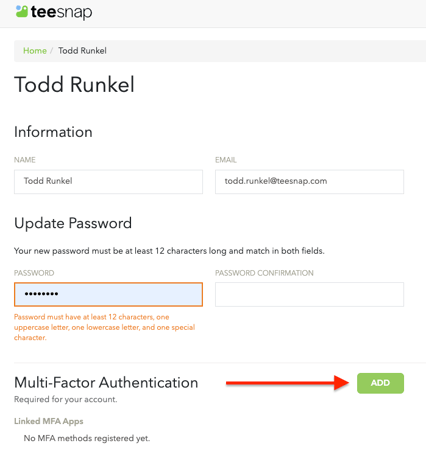 3. Follow the steps on the Google Authenticator page.
If you have any questions, please do not hesitate to reach out to Teesnap Support by emailing us at support@teesnap.com or calling 844-458-1032.