.png?width=240&height=55&name=Untitled%20design%20(86).png)
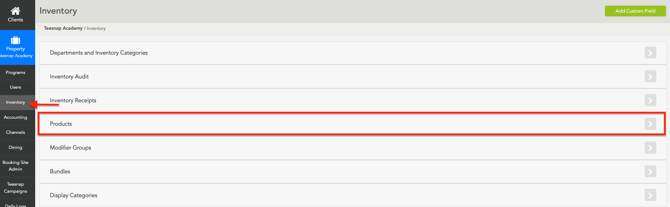
1. In the Admin Portal, go to the Inventory section and click Products.
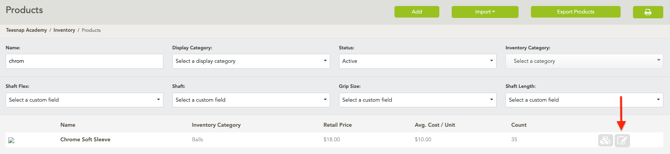
2. Find the product, then click the pencil icon to open the edit product window.
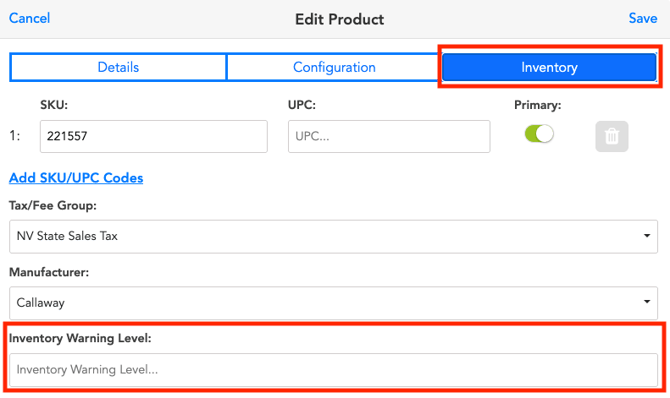
3. Click the Inventory tab, then locate the Inventory Warning Level section. Now specify the quantity at which you want the inventory warning to be triggered. Click Save when you are finished.
4. When a product reaches or falls below its low inventory level, a blue down arrow will appear next to its quantity.

To receive emailed notifications when a product has reached its low inventory level, please submit this form. CLICK HERE FOR FORM
If you have any questions, please do not hesitate to reach out to Teesnap Support by emailing us at support@teesnap.com or calling 844-458-1032