.png?width=240&height=55&name=Untitled%20design%20(86).png)
Processing an Online Store Sale:
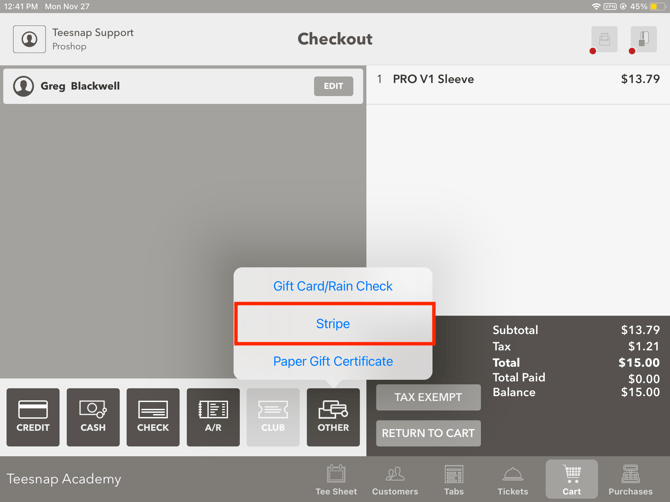
1. During the purchase of the item, select Other as the payment method. Then select the payment type, in our case, Stripe.
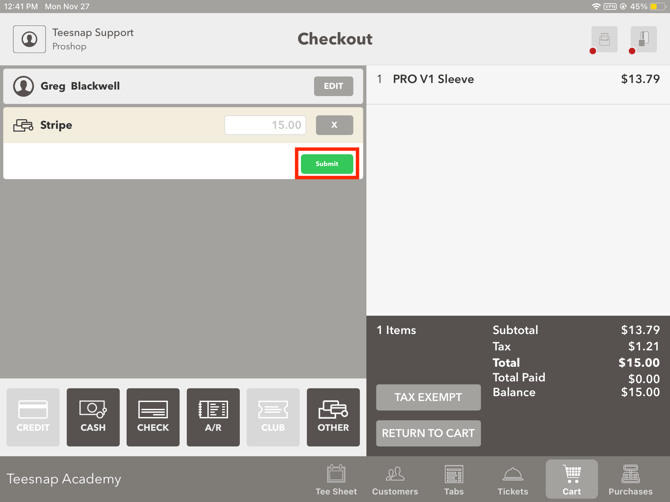
2. Select the Submit button to complete the sale.
Returning an Online Store Sale:
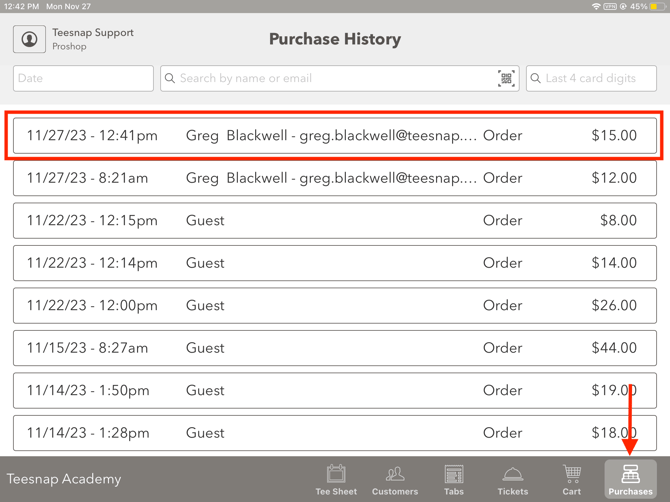
1. From the Purchase History screen, select the transaction you need to refund.
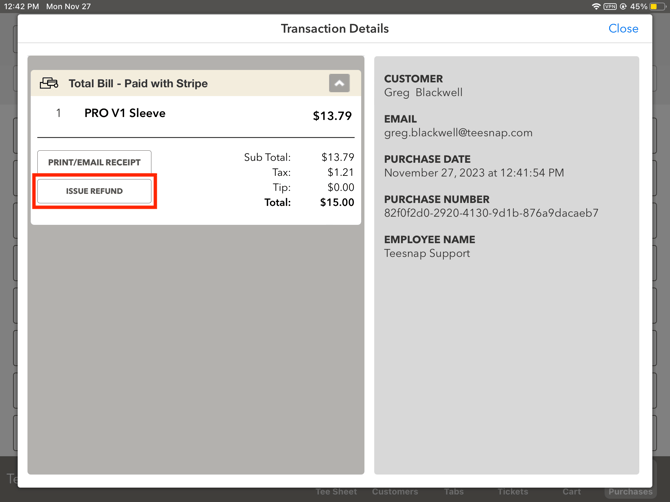
2. Confirm this is the correct transaction and then select Issue Refund.
3. Confirm the refund method at the top and then select Process Refund.
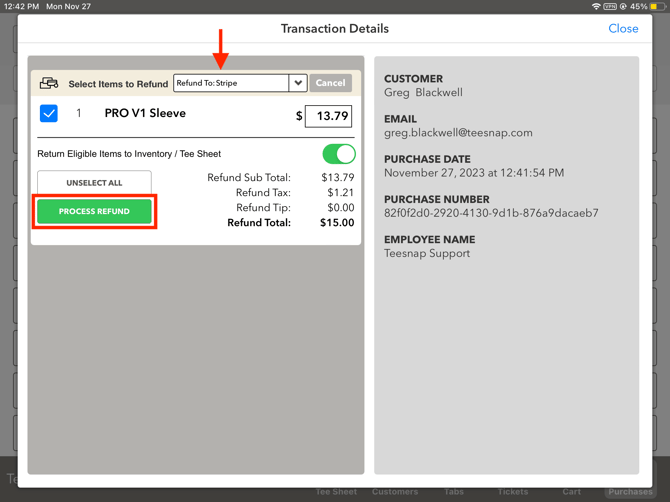
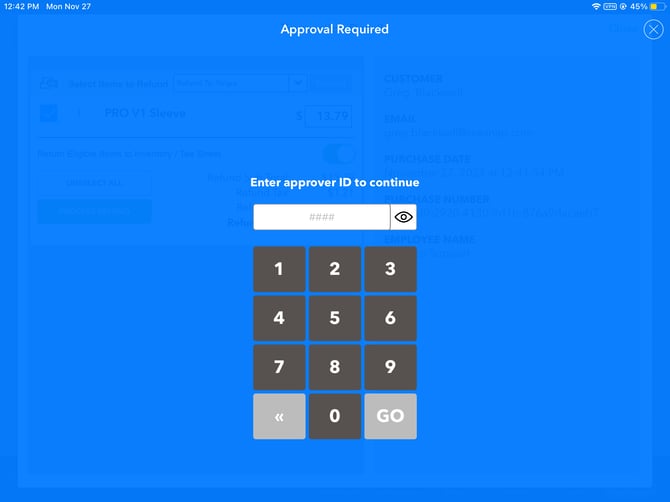
4. Enter your Employee ID to continue. If refund permissions are disabled for your role, a Manager ID will be required.
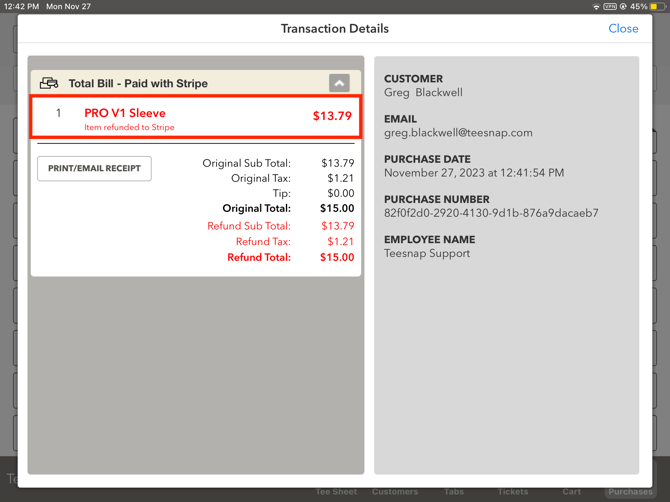
5. The refunded product and total amount will now appear in red under the Other Payment Type: Stripe.
Caution - This does not refund the credit card used during the transaction with Stripe. This is only allowing you to now refund to an Other Payment Method to reflect these refunds in Teesnap Reports. In the case of our example, you will need to go to your Stripe Admin account and refund the transaction back to the customer's credit card.
Check out this article for more information on how to contact your online store processor to issue the financial refund.
If you have any questions, please do not hesitate to reach out to Teesnap Support by emailing us at support@teesnap.com or calling 844-458-1032.