.png?width=240&height=55&name=Untitled%20design%20(86).png)
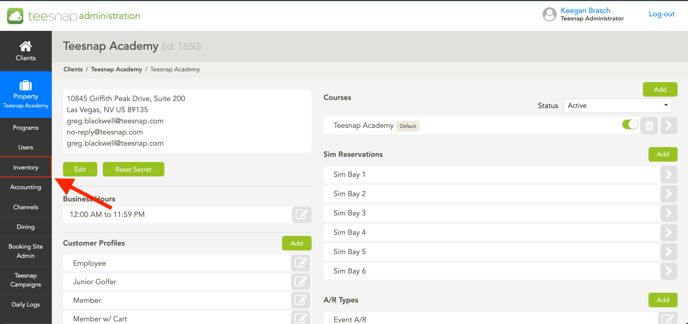
Step 1: Navigate to the Teesnap Admin Portal and Click on Inventory.
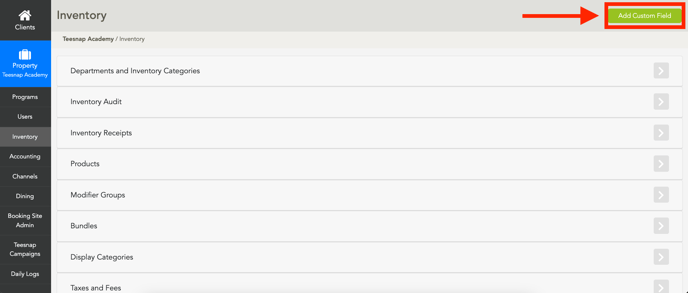
Step 2: Click on Add Custom Field in the Top Right Corner of the Screen.
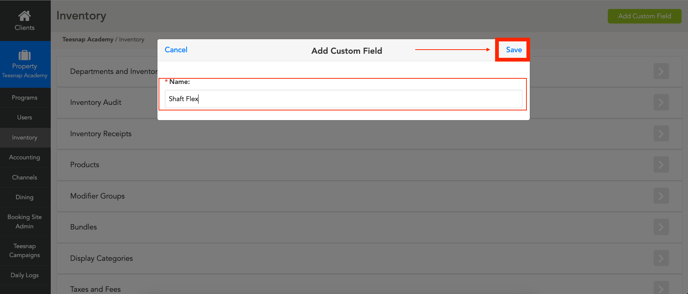
Step 3: Name the Custom Field and Click Save.
Step 4: Scroll to the bottom of the inventory page and select the newly created Custom Field.
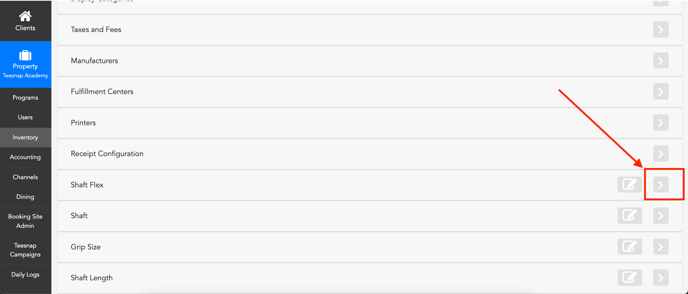
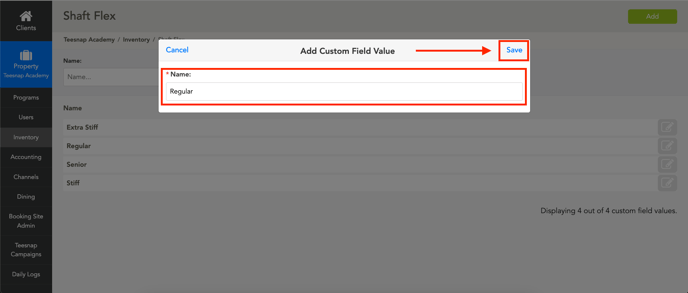
Step 5: Create the Custom Field Options. In this example, we created a Senior, Regular, Stiff, and Extra Stiff Options for the Shaft Flex Field.
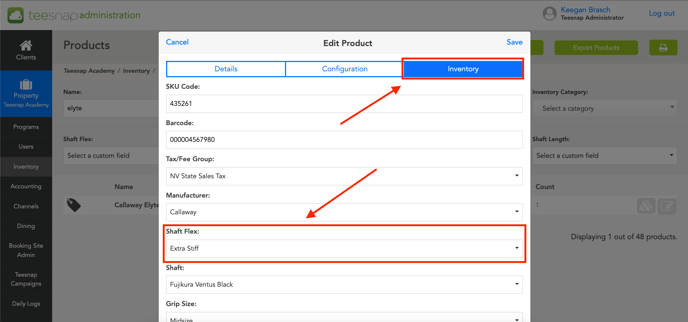
Step 6: Apply the newly created custom field to a product by going to Inventory - Products - Edit Product. Navigate to the Inventory Tab and you'll find the newly created custom field.