.png?width=240&height=55&name=Untitled%20design%20(86).png)
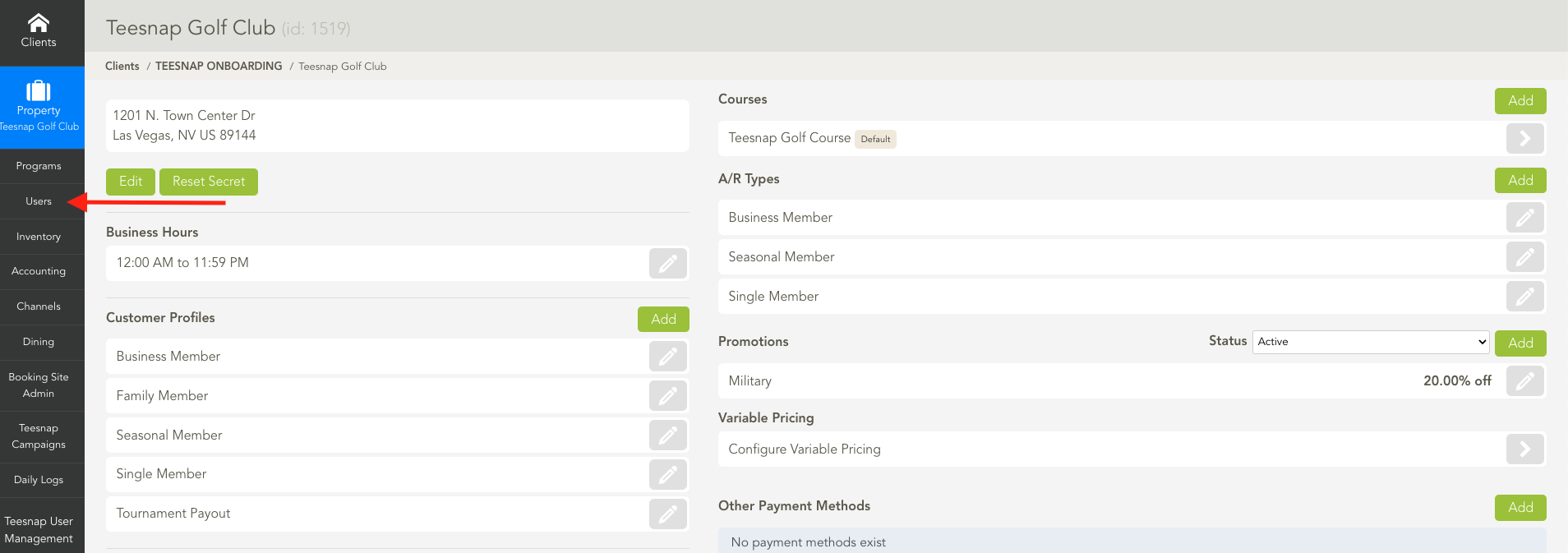
1. In the admin portal click USERS on the left-hand side of the screen.
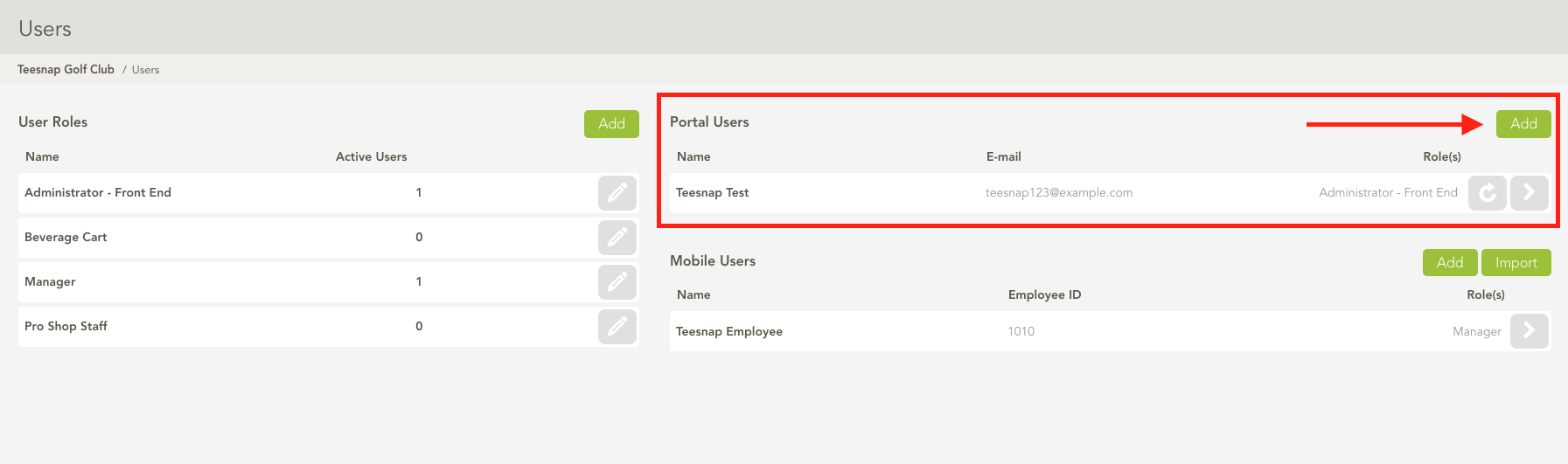
2. To add a portal user click ADD on the right portion of the page in the Portal Users section.
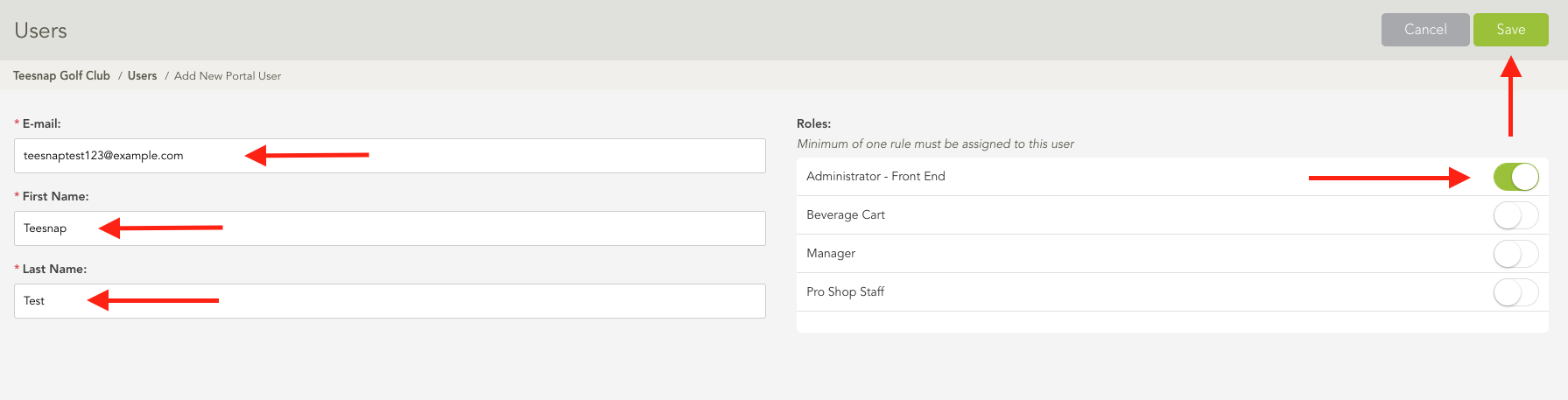
3. Enter the portal user info: email, first/last name. Then select the appropriate user role(s). In our case, we selected Administrator - Front End. Click SAVE in the upper right-hand corner before proceeding. NOTE: when you hit Save, this will trigger an introductory email to be sent to the email address of the new user. This email will have the link to the Admin Portal and a temporary password.
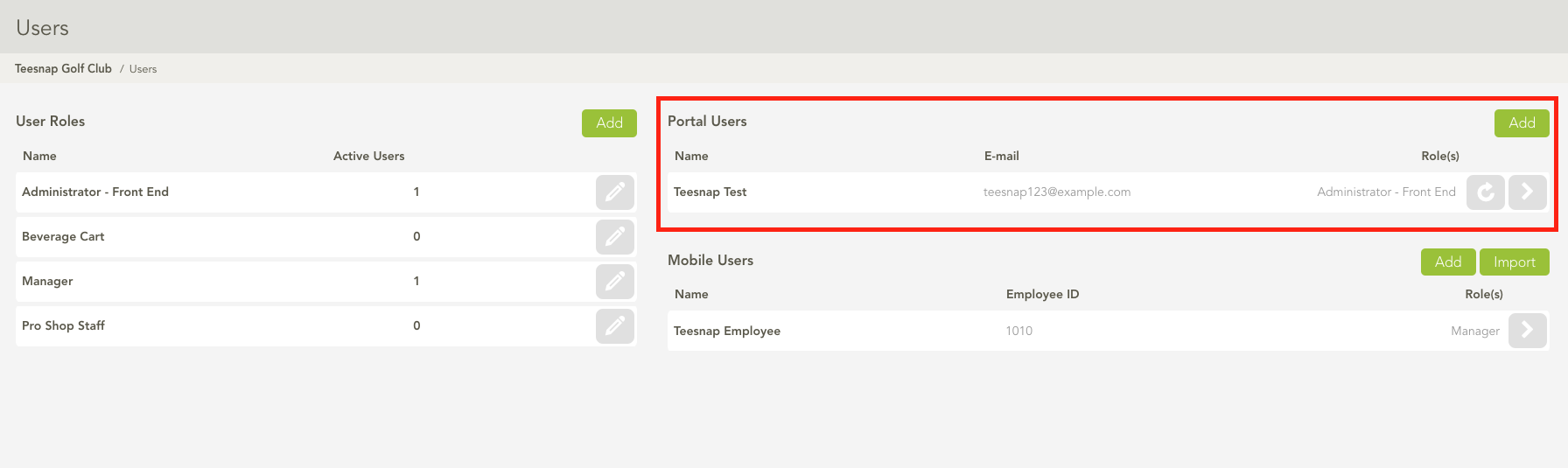
4. You will see your portal user added here. Repeat these steps to add additional portal users.
If you have any questions, please do not hesitate to reach out to Teesnap Support by emailing us at support@teesnap.com or calling 844-458-1032.