.png?width=240&height=55&name=Untitled%20design%20(86).png)
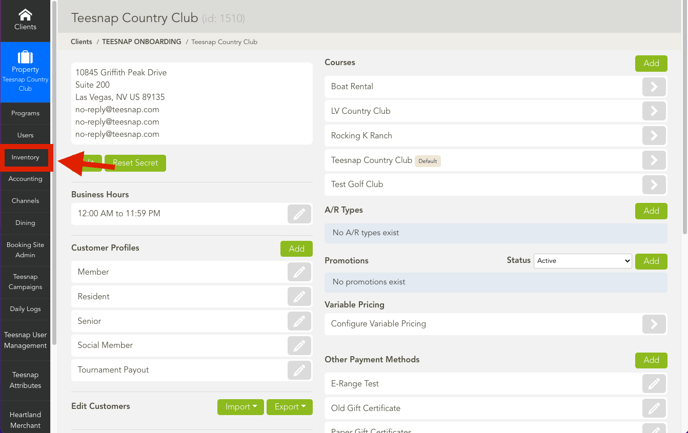
1. Find the "inventory" tab, click it and open it.
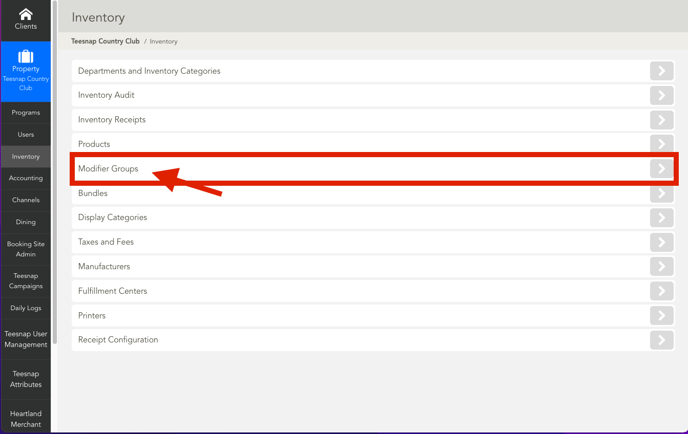
2. Locate the "Modifier Groups" tab. Click it and open it.
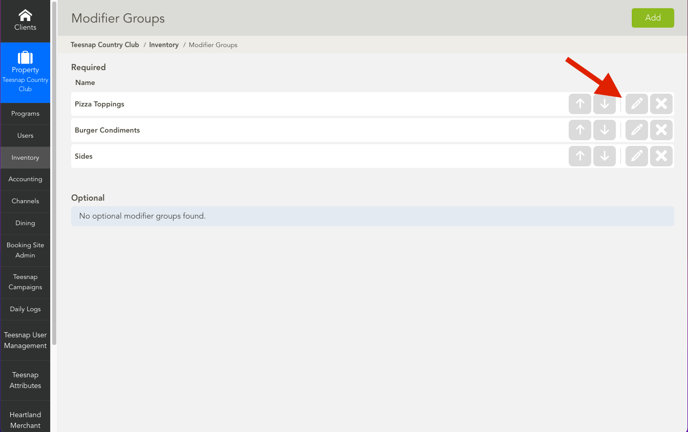
3. Click on the pencil to edit the Modifier Group.
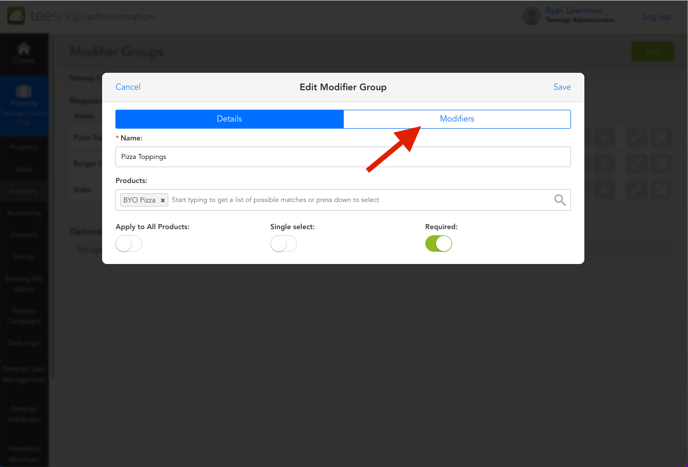
4. Once in this window open the "Modifiers" tab.
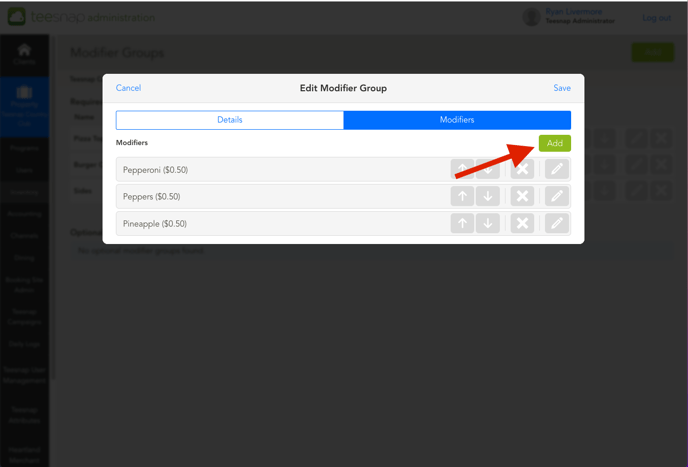
5. Once in the "Modifiers" tab, you can make many edits, one being, adding a new modifier to the group. To add a new modifier click "Add."
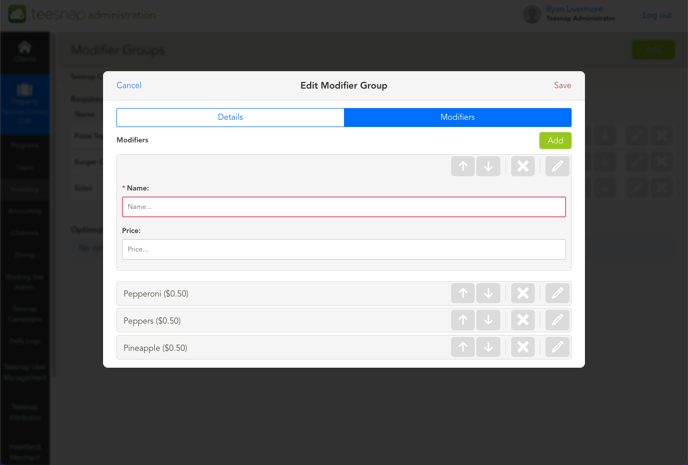
6. This is where you have the option to add any topping. There is also an optional Price field where you can add an upcharge price if applicable.
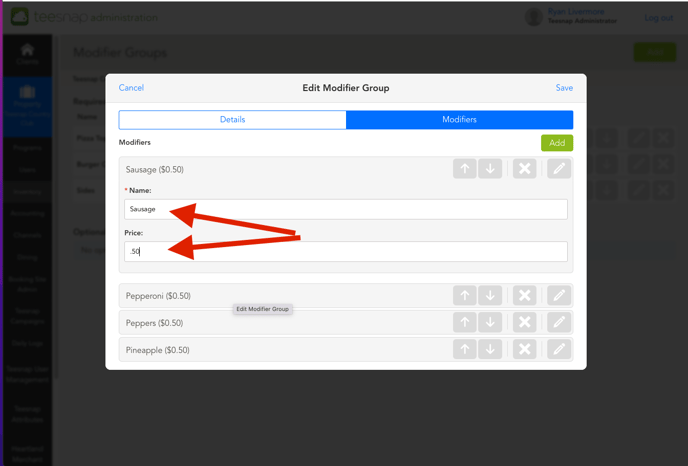
7. Let's say we wanted to add Sausage as a modifier and we want to charge and additional $.50. Once you have done that hit save.
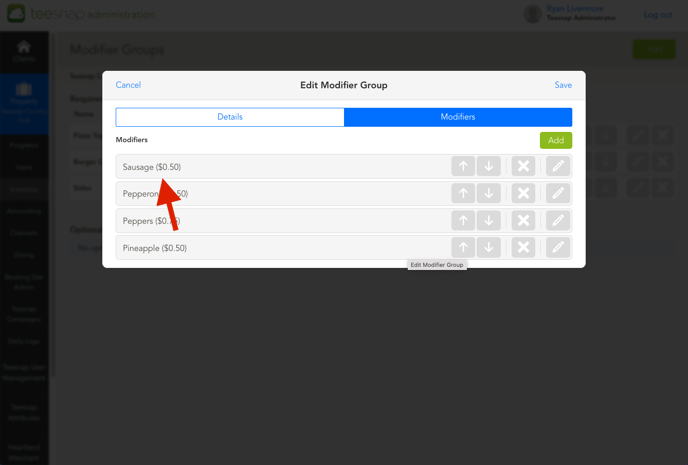
8. We can now see Sausage as a modifier.
If you have any questions, please do not hesitate to reach out to Teesnap Support by emailing us at support@teesnap.com or calling 844-458-1032