.png?width=240&height=55&name=Untitled%20design%20(86).png)
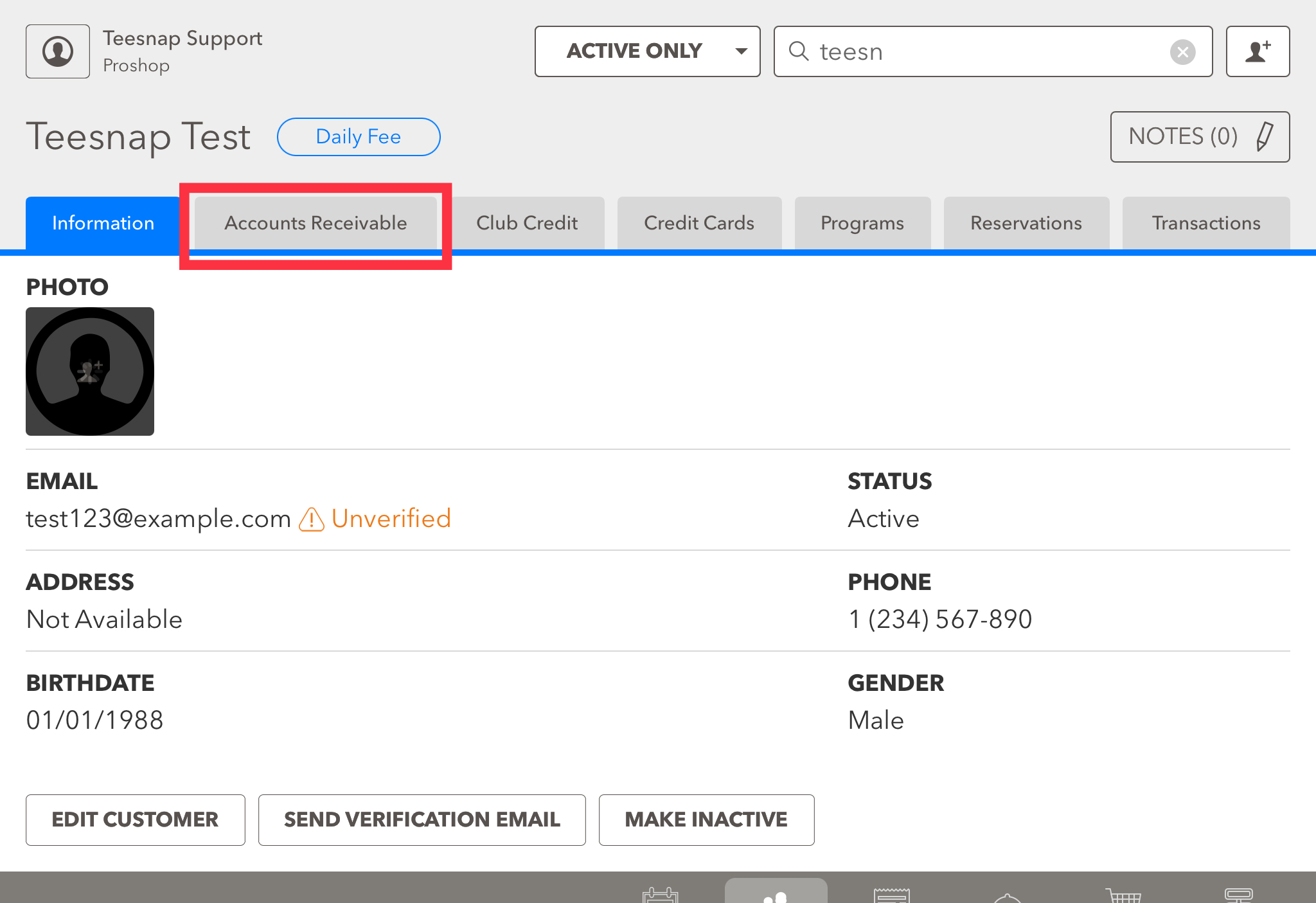
1. From the customer dashboard select the Accounts Receivable Tab.
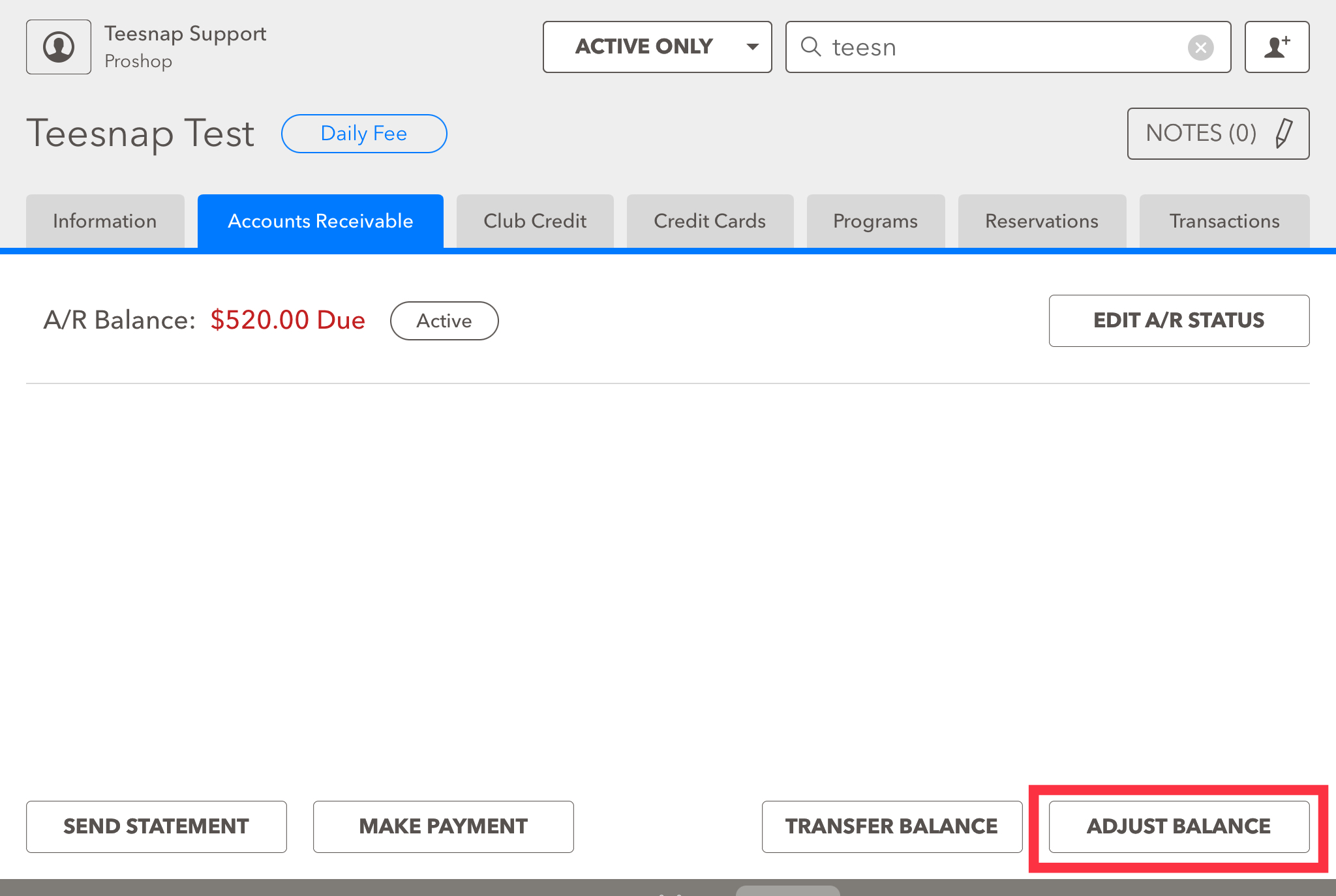
2. You will see the total balance due here. Click ADJUST BALANCE in the lower right-hand corner of the page.
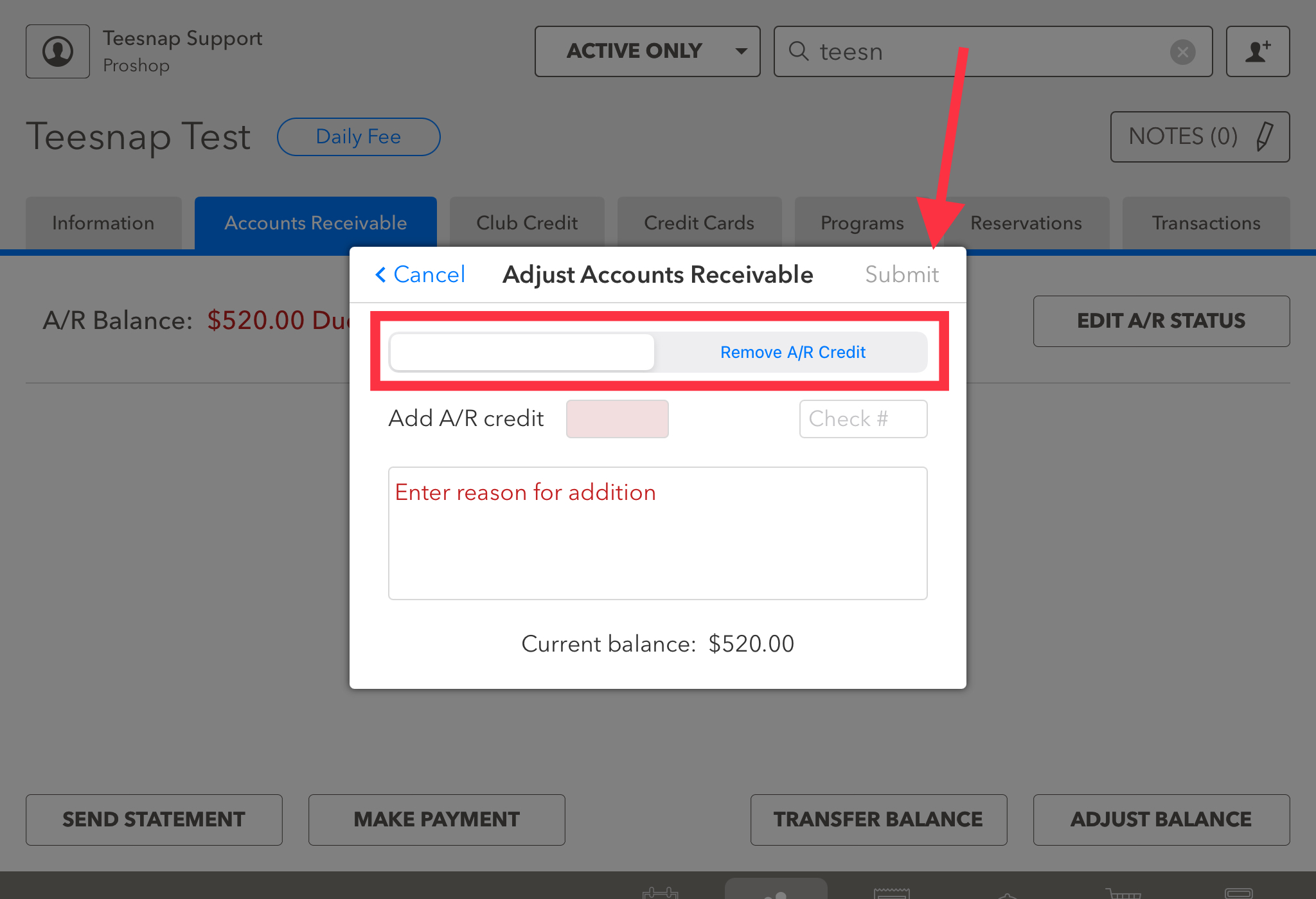
3. The adjust A/R window will appear. Here you will choose whether you're adding/removing A/R credit. Be sure to fill in the value and a reason. Click SUBMIT in the top right corner before proceeding.
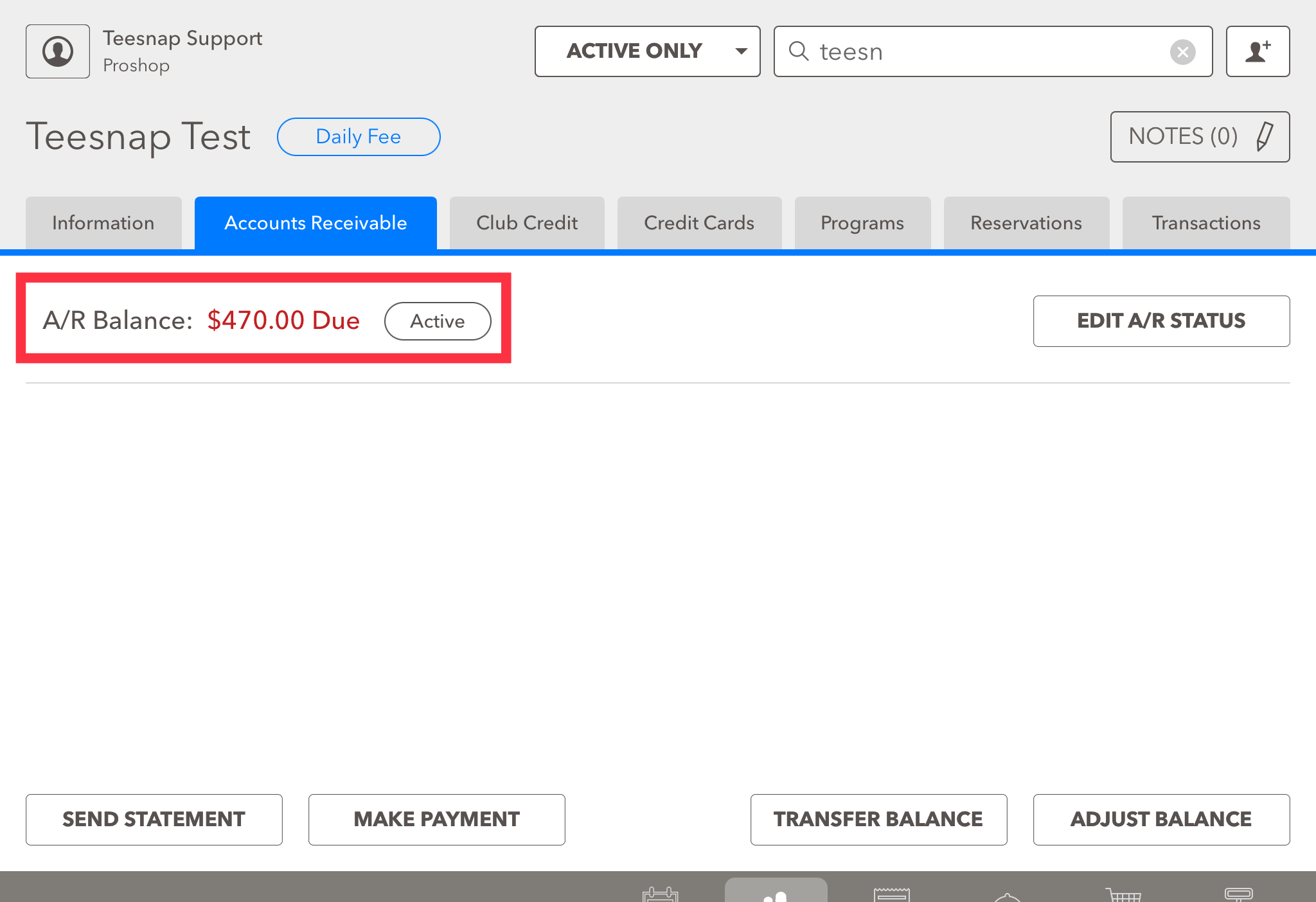
4. Returning to the accounts receivable tab you will see the adjusted A/R balance. Repeat the steps above to edit an A/R balance.
If you have any questions, please do not hesitate to reach out to Teesnap Support by emailing us at support@teesnap.com or calling 844-458-1032