.png?width=240&height=55&name=Untitled%20design%20(86).png)
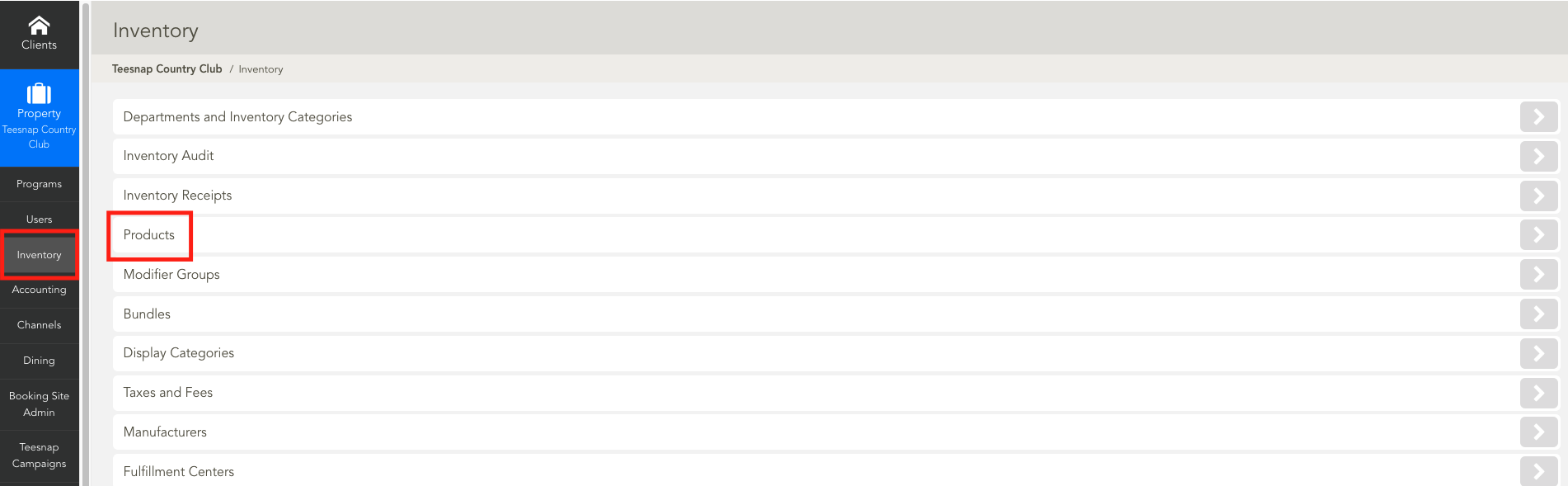
1. From the Admin Portal select Inventory and then Products
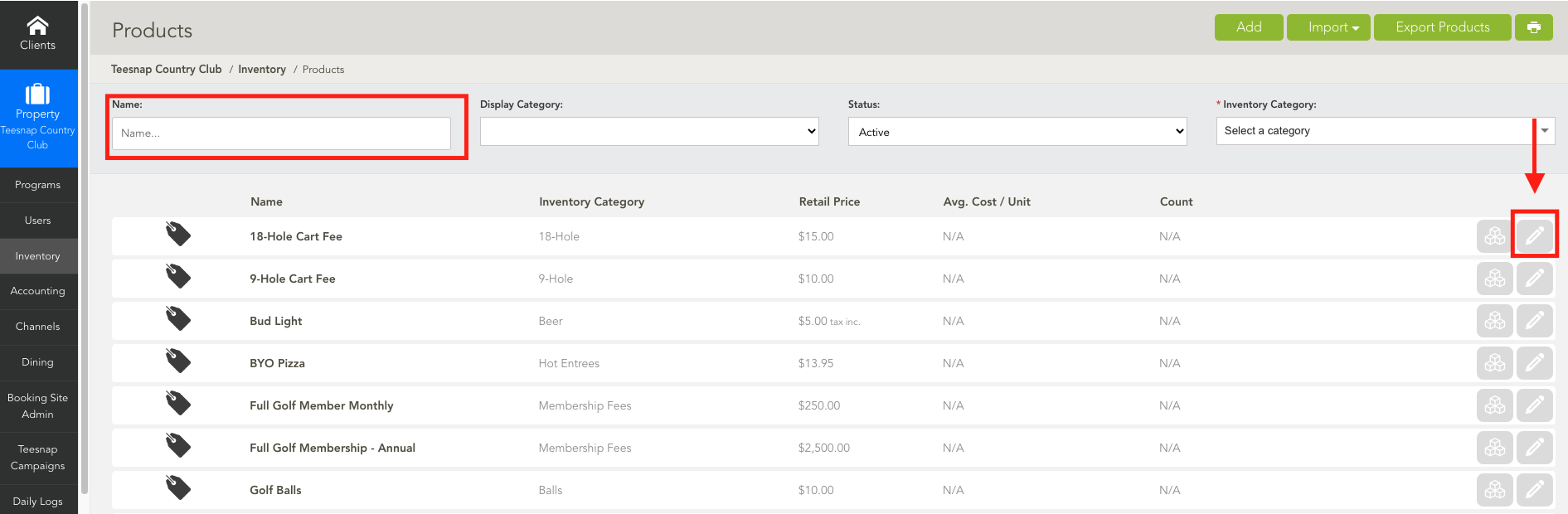
2. From the Products screen, search for the item you want to assign a Tax/Fee Group to. Select the Pencil on the right-hand side of that product.
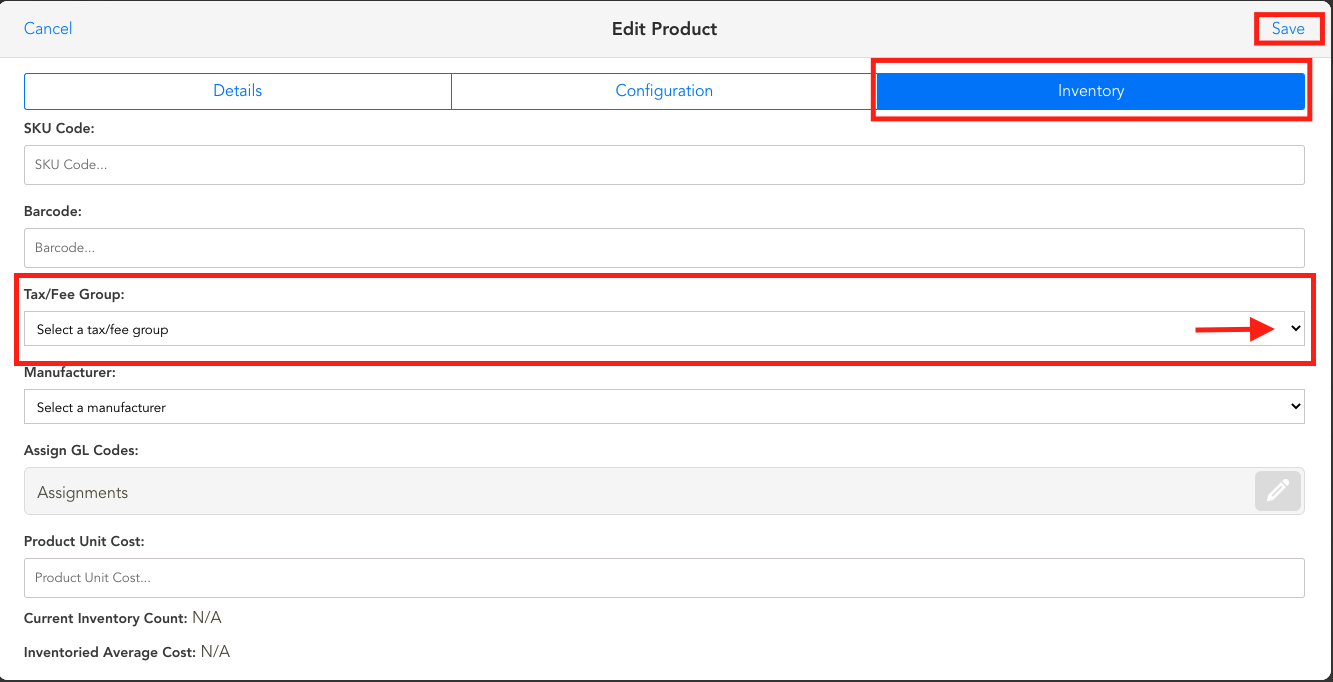
3. From the Edit Product screen, select the Inventory Tab. Here you will find the Tax/Fee Group drop-down. Select the desired tax/fee for this product from the drop-down. Click Save once complete.
If you have any questions, please do not hesitate to reach out to Teesnap Support by emailing us at support@teesnap.com or calling 844-458-1032