.png?width=240&height=55&name=Untitled%20design%20(86).png)
To change the price of a product in WooCommerce:
- First, log into your WordPress Dashboard.
- Next, from the navigation menu on the left, click the Products link.
- Choose the product you wish to edit.
- In the Product Data panel, select the General tab.
- Update the Regular Price field or Sale Price field with a number.
- That's it! Save your changes.
General section
- Price
- Regular Price - Items normal/regular price
- Sale Price - Items discounted price that can then be scheduled for certain date ranges. The sale expires at 11:59 pm of the specified end date
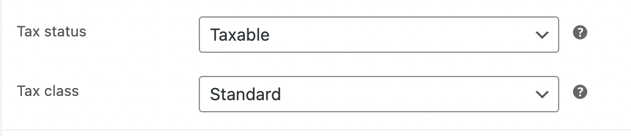
- Tax
- Tax status - Taxable / Shipping only / None
- Tax class - Choose which tax class should be applied

If you have any questions, please do not hesitate to reach out to Teesnap Support by emailing us at support@teesnap.com or calling 844-458-1032.