.png?width=240&height=55&name=Untitled%20design%20(86).png)
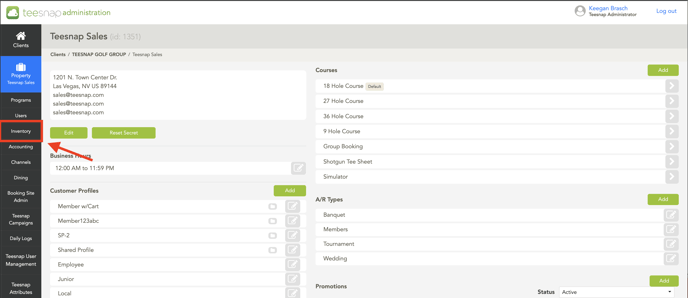
Step 1: Log in to www.admin.teesnap.com - select Inventory from the left hand sidebar.
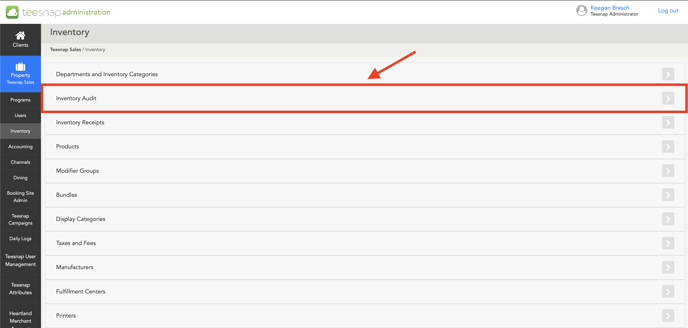
Step 2: Select Inventory Audit.
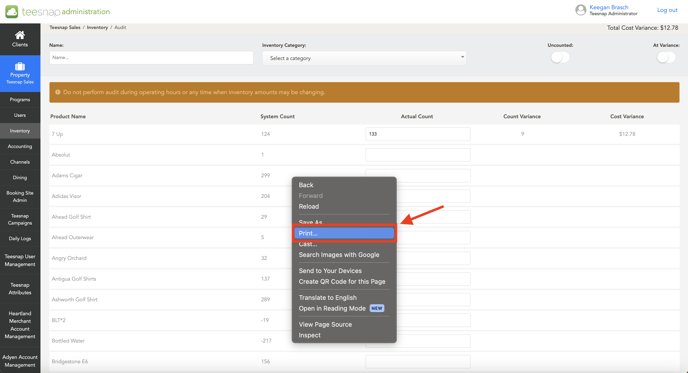
Step 3: Right Click the page and choose Print.
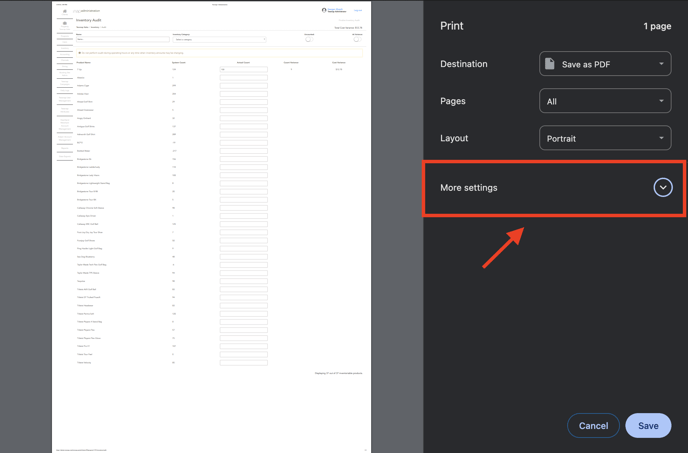
Step 4: Select More Settings and keep the Destination Setting as Save as PDF.
Step 5: Click on the Paper Size dropdown and Select A1 or A0.
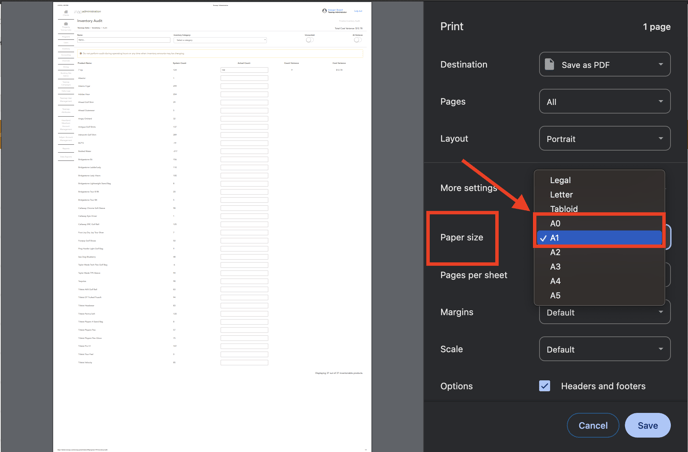
Step 6: Download the PDF and Print.
If you have any questions, please do not hesitate to reach out to Teesnap Support by emailing us at support@teesnap.com or calling 844-458-1032