.png?width=240&height=55&name=Untitled%20design%20(86).png)
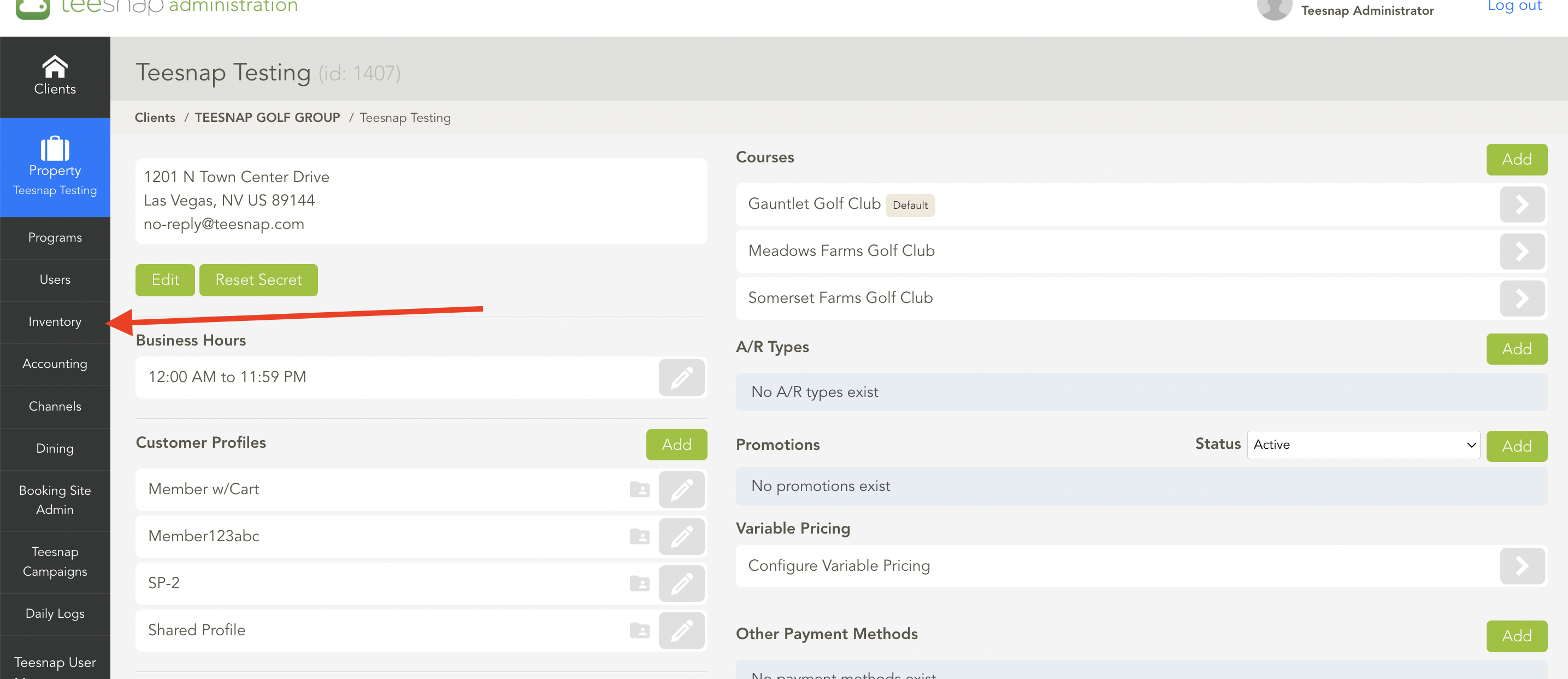
1. To access the admin portal, simply click on the Inventory option located on the left-hand side of your screen.
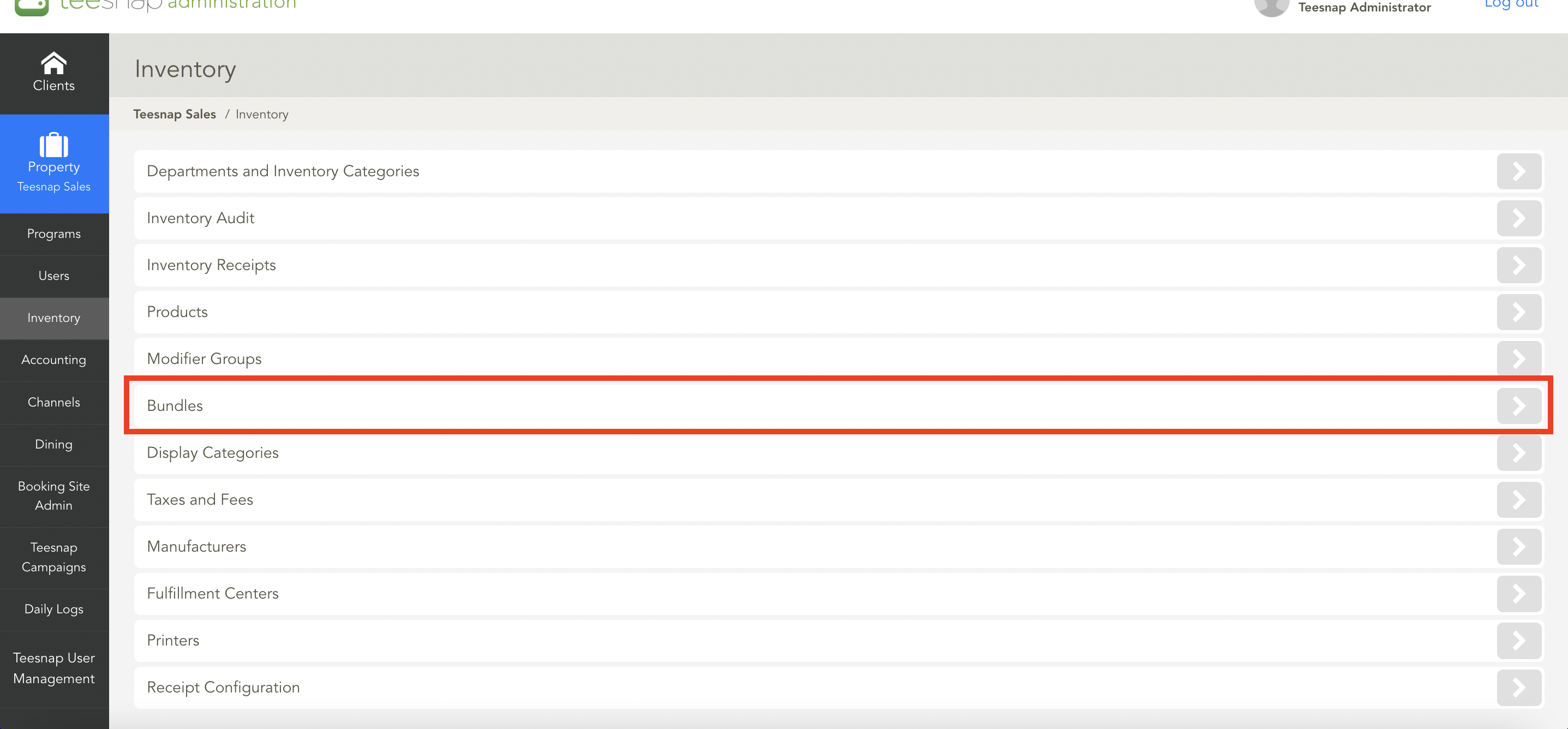
2. In the inventory list, select Bundles.
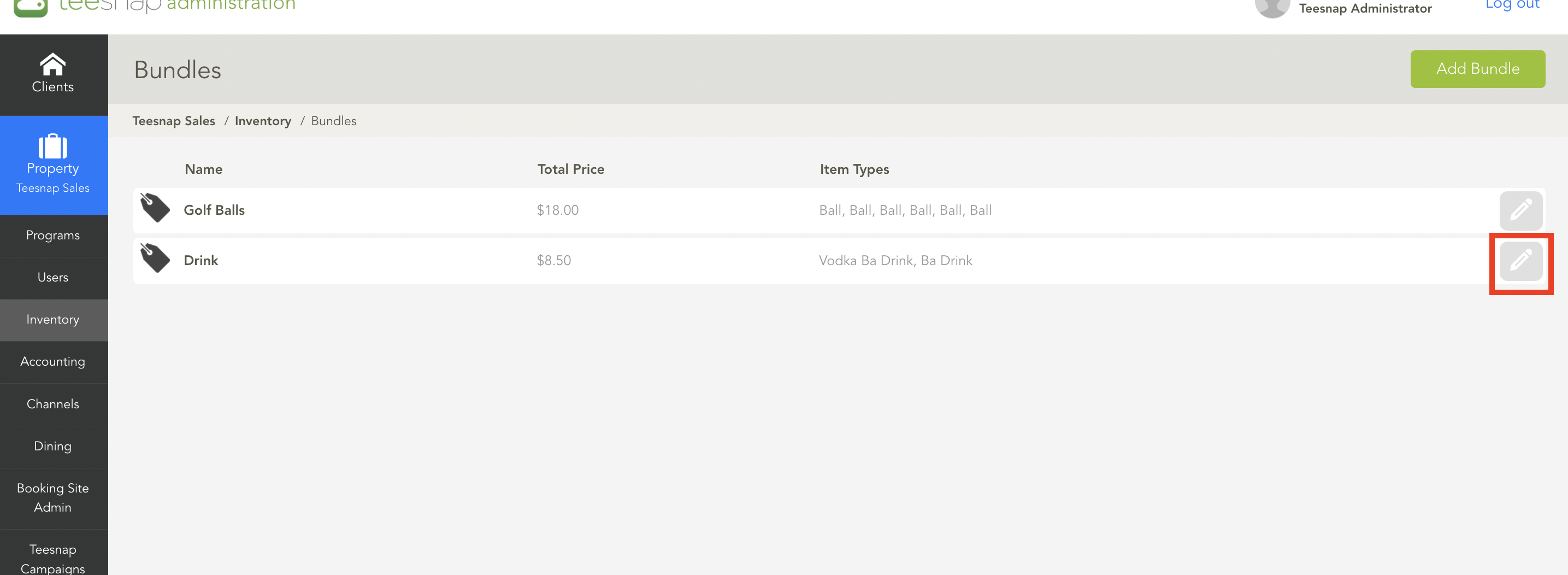
3. Click on the Grey Pencil to edit the bundle.
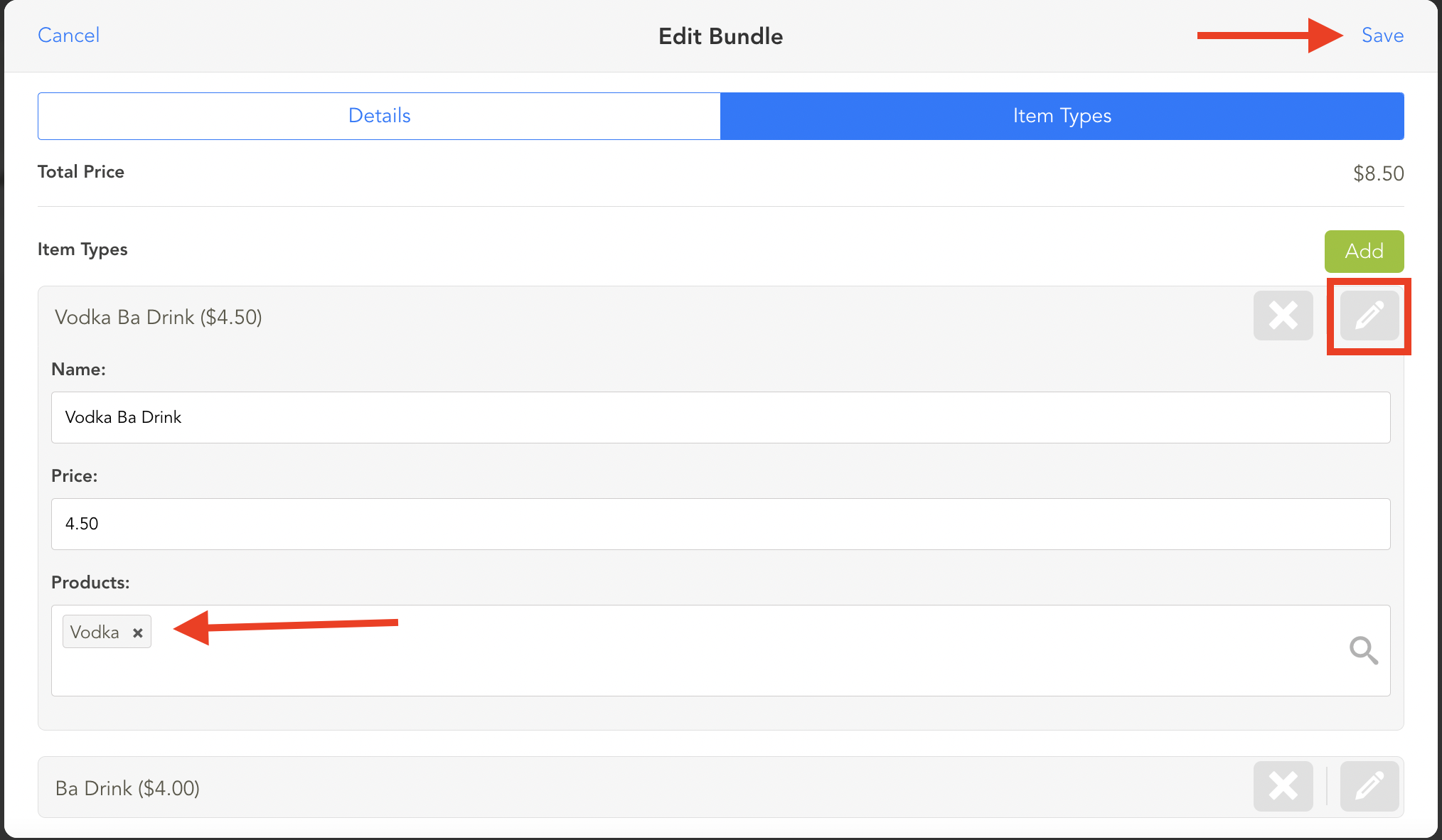
4. From the Edit Bundle window, select the Item Types tab. Now select the Pencil Icon for the Item Type you would like to edit. Under Products, select the X next to the product(s) you would like to remove from this Item Type. When complete, click Save.
If you have any questions, please do not hesitate to reach out to Teesnap Support by emailing us at support@teesnap.com or calling 844-458-1032.